Features
Everything a small team needs. Nothing more.
Every feature is included. Client guests are unlimited.
Working with clients
The client in the same list, with no password and no fee.
Invite your client to a project as a guest. They get an email, sign in with a link and see only the tasks assigned or shared with them — with comments and files, without the rest of the project. On every task you mark who it is waiting on: the client, you, or a third party, and you see for how many days. The Open items view gathers this in one place, longest waiting first. Start a new rollout from a template, with due dates counted from the start day.
In the documentation →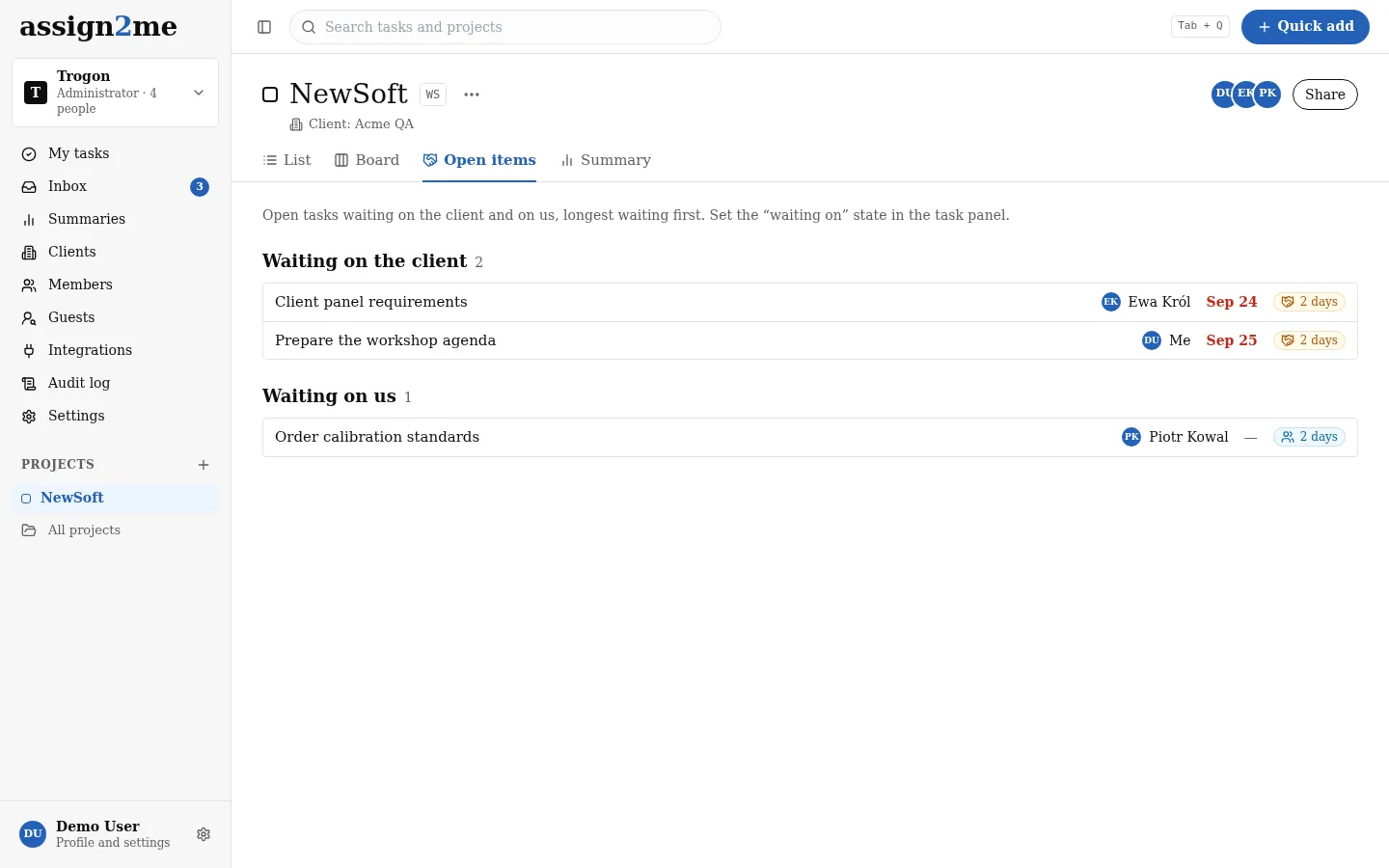
Unlimited guests
Invited by email, signed in by link. Guests don't change the price.
They see only their own
Tasks assigned or shared with them. The rest of the project stays with the team.
“Waiting on”
The client, you or a third party — with the number of days waiting.
Open items with the client
What waits on the client and what waits on you, in one project view.
Clients and their projects
A project belongs to a client; a list of clients with their projects.
Rollout templates
A project plan from a template, with due dates counted from the start day.
Tasks
Captured fast, clearly owned.
Add a task without a form: a title and Enter. Each one has one owner and a due date in words — “Today”, “Tomorrow”, overdue in red. Every task shows how many days it has been waiting, so forgotten work stands out on its own. Break bigger work into subtasks and set up repeating work as a recurring task. The history records every change, including those from Slack and the AI assistant. Bring tasks from another tool with a CSV file.
In the documentation →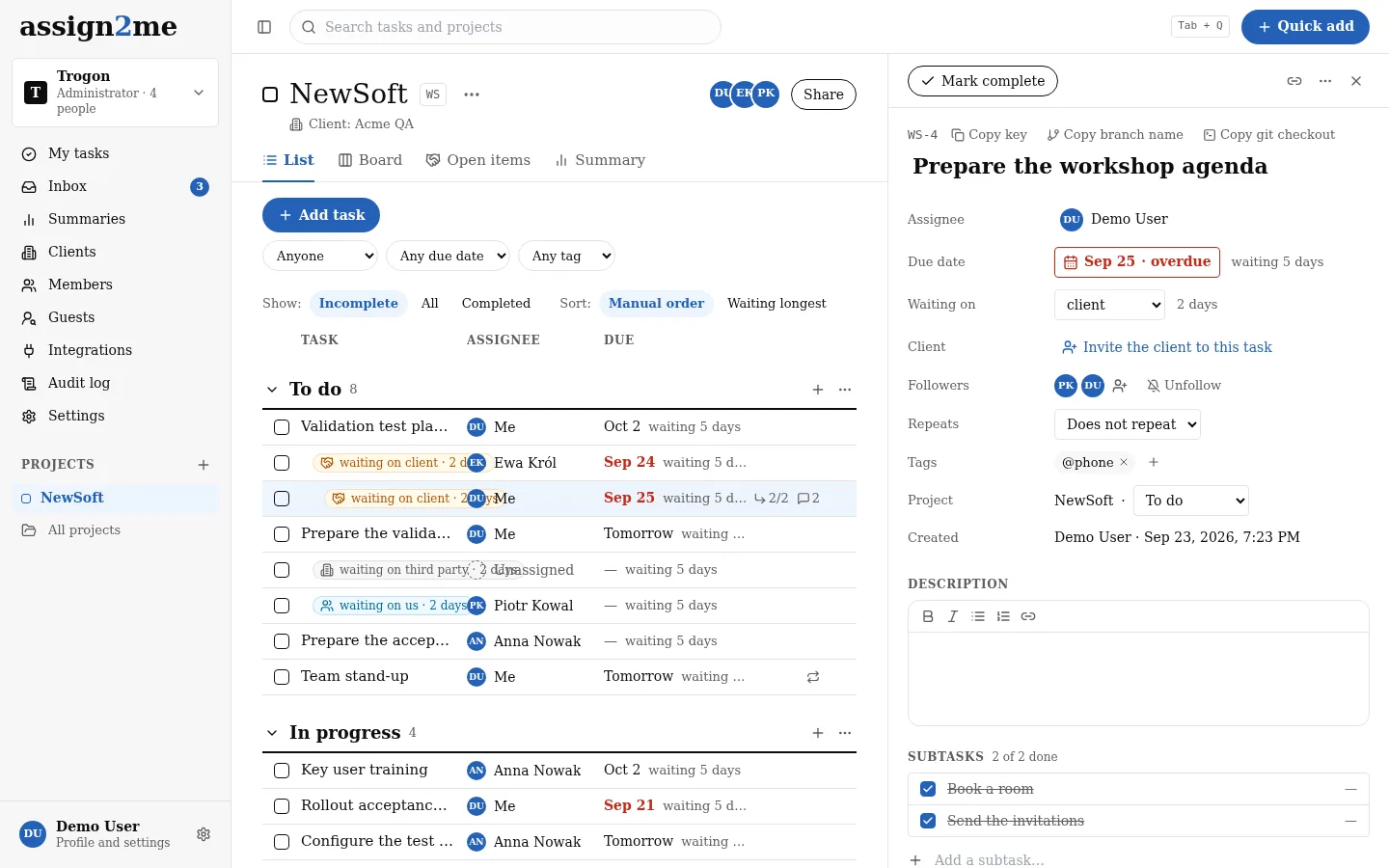
Add without a form
A title, Enter, done. The next empty row opens right away.
Capture from anywhere
The Tab + Q shortcut opens quick add on every screen.
One person responsible
A task has one owner. Others can follow it.
Subtasks and recurring tasks
Break bigger work into steps; set up repeating work once.
Waiting time
On every task: “waiting 5 days” or “closed after 3 days”.
Change history
Who changed what and when. Including changes from Slack and the AI assistant.
CSV import
Tasks from another tool, with the columns mapped during the import.
Undo delete
Deleted something by mistake? You have 10 seconds to undo it.
Views
The same project, several ways to look at it.
See a project as a list with sections or as a board, where sections are columns and dragging a card changes its stage. Task details slide in from the side while the list stays in view, and changes save themselves. Filter by person, due date and status, and search titles and descriptions. Others see a new task within seconds, without refreshing. Every task and project has a permanent address you can simply send.
In the documentation →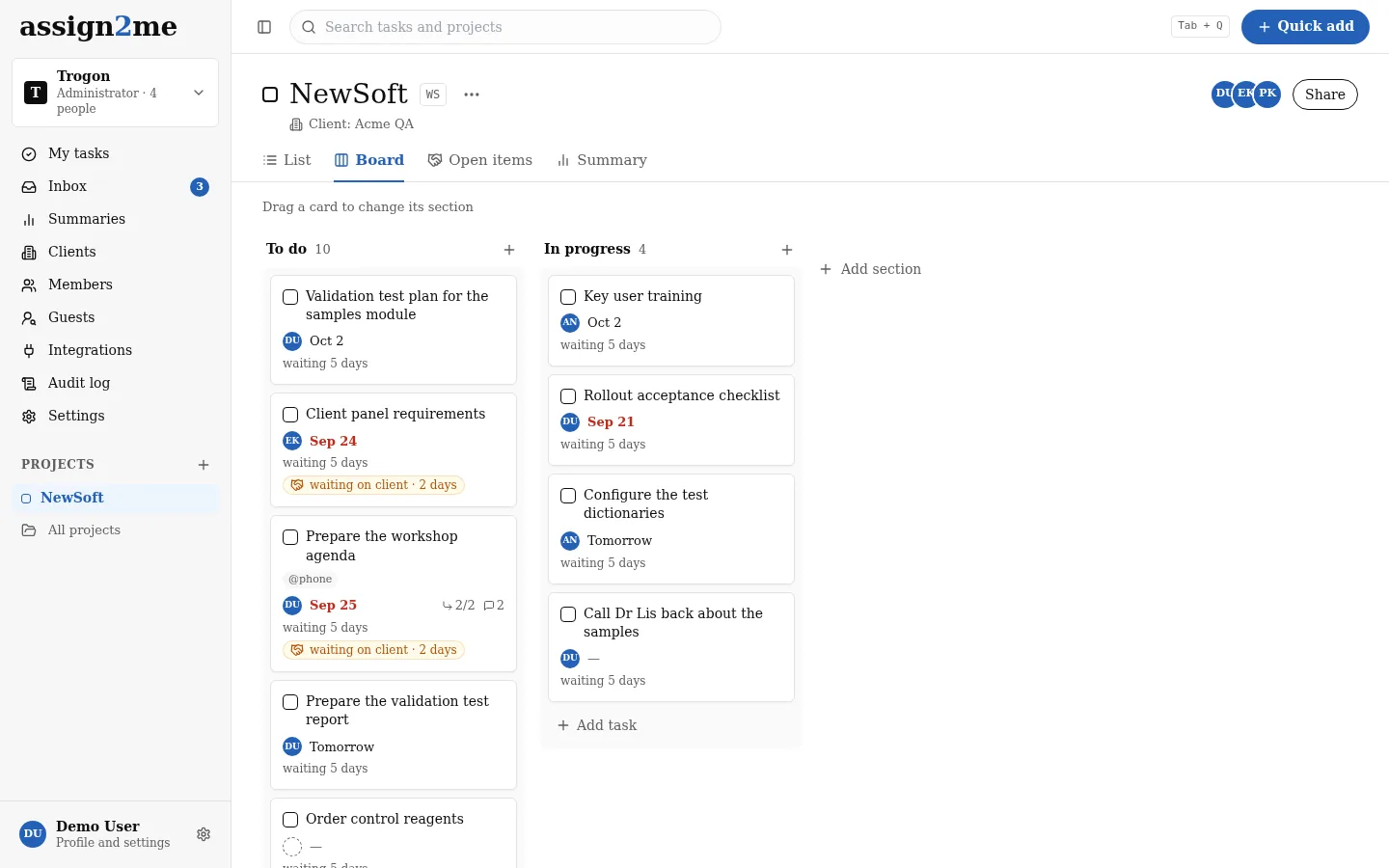
List with sections
The whole project on one screen. Collapse and reorder sections.
Board
Sections as columns. Drag a card and its stage changes.
Task panel on the side
Details on the right while the list stays in view.
Filters and search
By person, due date and status. Only in what you have access to.
Live updates
Everyone in the project sees a new task within seconds.
On your phone
Works in the phone's browser. Nothing to install.
My tasks
Your list across all projects. The first screen after you sign in.
My tasks gathers everything you have to do from every project. Arrange it in four groups: New, Today, Next and Later — only you see them. At midnight, tasks due today or earlier move to “Today” on their own. Note something just for yourself as a private task and move it to a project later. Sort by due date, project or waiting time.
In the documentation →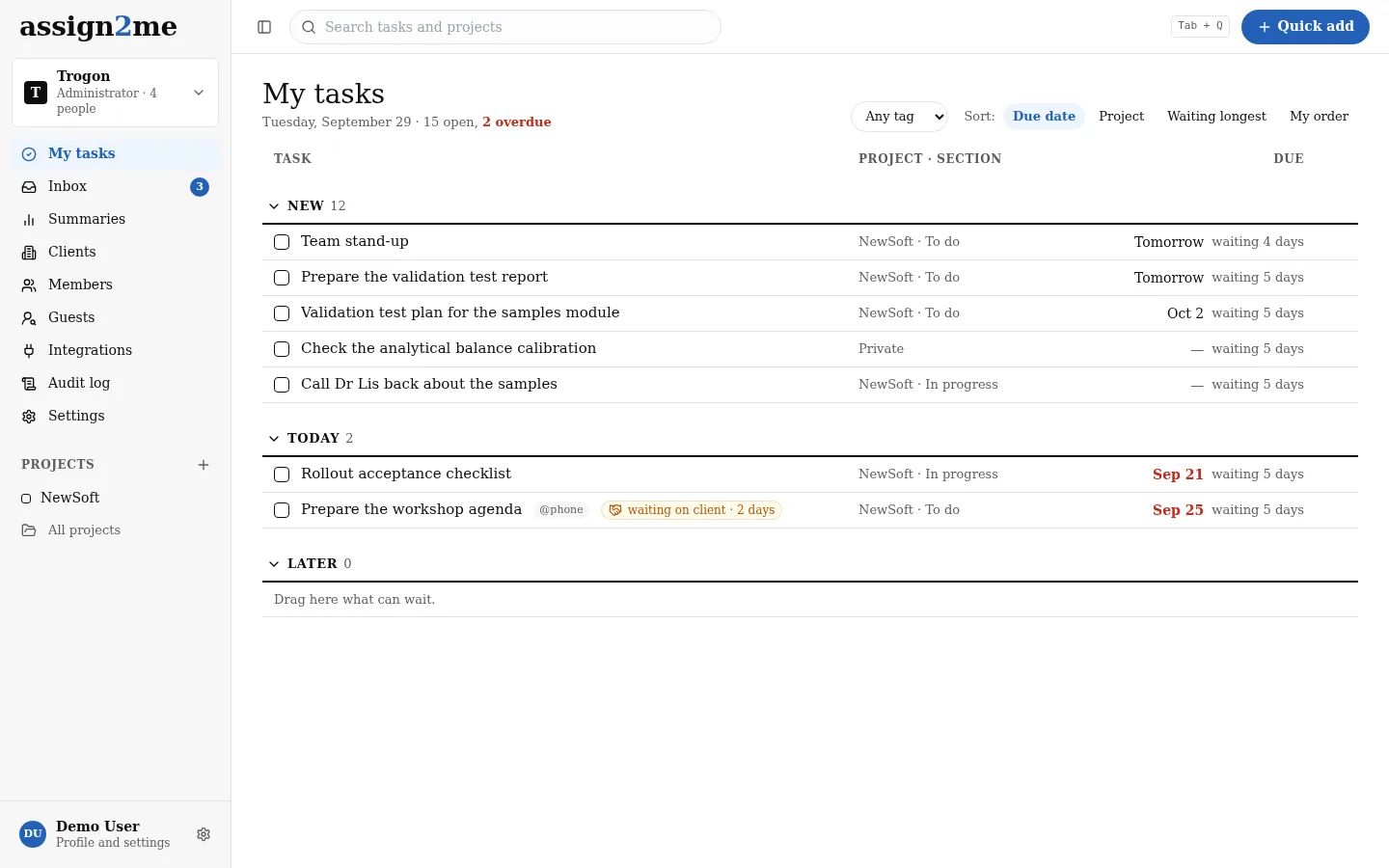
New, Today, Next, Later
Your own categories for planning the day and the week.
“Today” fills itself
At midnight, tasks due today or earlier move to “Today”.
Private tasks
Note something just for yourself. Move it to a project later.
Longest waiting on top
Sort by due date, project or waiting time.
Collaboration
The conversation lives with the task, not next to it.
Comments live on the task, together with files and history. An @mention adds the person as a follower and notifies them. Followers hear about changes and can unfollow. Notifications arrive by email, in the app or in Slack — everyone chooses for each kind of event. On the morning of the due date you get a reminder, in your own time zone. A client guest comments on their tasks just like the team does.
In the documentation →Comments and @mentions
A mention adds the person as a follower and notifies them.
Attachments
Files on the task and in comments, up to 25 MB each.
Notifications
By email, in the app or in Slack. You choose.
Due date reminder
In the morning on the due date, in your time zone.
Summaries
The state of work on one screen. As a CSV file when you need it.
The project summary shows open, overdue, unassigned and undated tasks, and a chart of work completed in recent weeks. A person's summary is their workload, upcoming due dates and everything overdue. An administrator sees the whole team in one table, sortable and filtered by project. Click a number to see the actual tasks. Download any summary as a CSV file and open it in Excel — for a client report or a meeting.
In the documentation →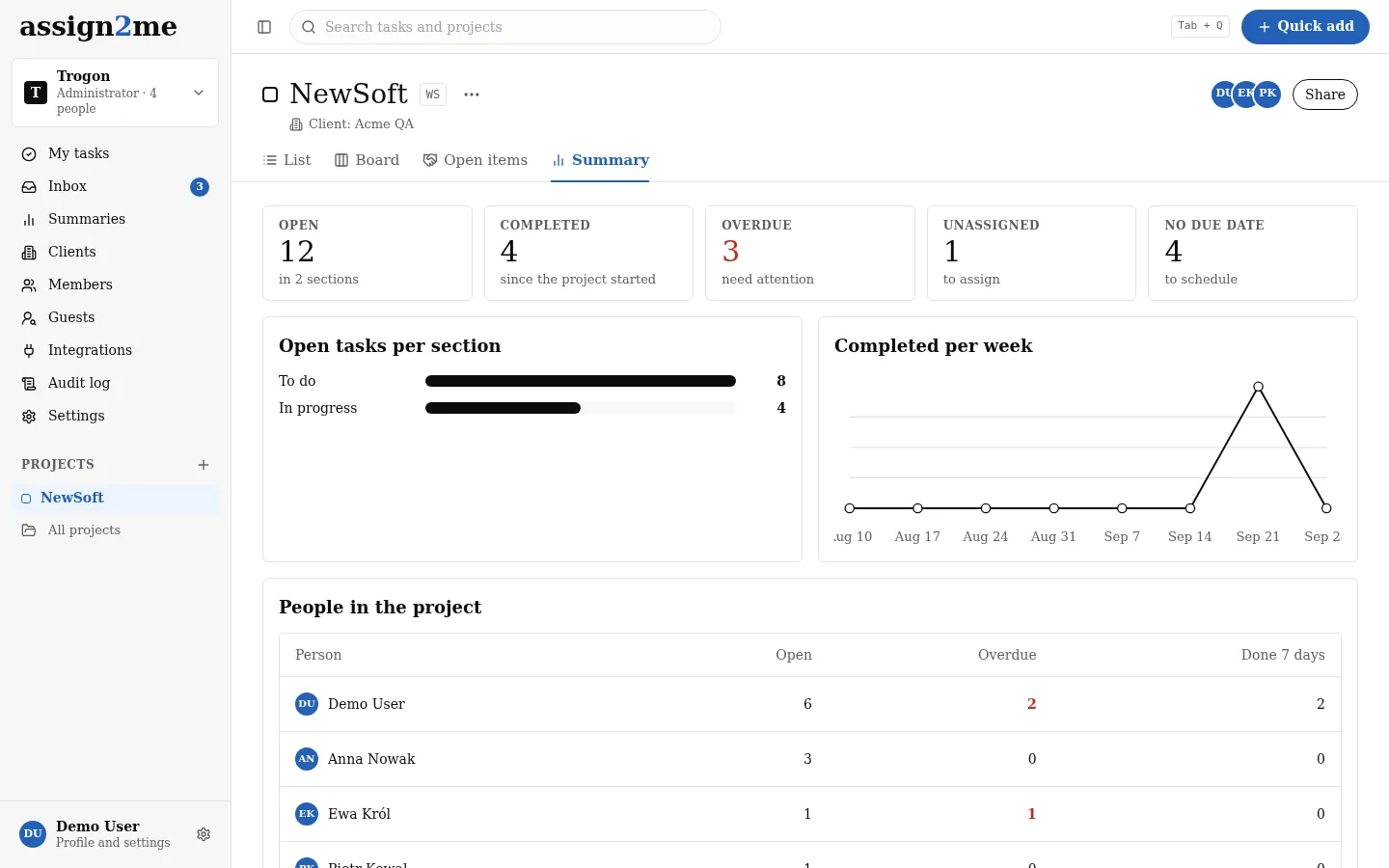
Project
Open, overdue, unassigned, no due date. A chart of completed work.
Person
Workload and progress. Upcoming due dates and everything overdue.
Team
For the administrator: every person in one row.
Export to CSV
Any summary as a CSV file that opens in Excel.
Team and permissions
Everyone sees what they should.
Invite your team by email, up to 20 people at once, straight into chosen projects. A project member sees everything, someone outside the project sees only the tasks assigned to them, and a client guest sees only their own. There are two roles, administrator and member, plus an owner for each project. Deactivation removes access within a minute and leaves the person's tasks in place. One account works across several companies, and their data never mixes.
In the documentation →Email invitations
Up to 20 people at once, straight into chosen projects.
Project visibility
Project members see everything. Others see only the tasks assigned to them.
Simple roles
Administrator and member, plus an owner for each project.
Someone leaves
Deactivation removes access within a minute. Their tasks stay.
Several companies, one account
Switch in the left sidebar. Company data never mixes.
Audit log
Who changed settings, roles and access in the organization, and when.
Integrations
Included, no add-ons.
Developers stay where they work. The task key in a branch name or a pull request title links the code to the task, and a merge can close it. Create a task with one Slack command and get notified there. An AI assistant — Claude Code, Claude or ChatGPT — reads and changes tasks over MCP, always with the permissions of the person who connected it, and every change it makes goes into the task history.
In the documentation →Billing and data
Invoices, the annual plan, and data you can always take with you.
For every billing period you get an electronic VAT invoice; Polish companies receive it through KSeF. A company from another EU country with an EU VAT number pays the net amount under reverse charge. On the annual plan you pay for 10 months and use it for 12. An administrator accepts the data processing agreement in the app, downloads the whole organization as CSV and JSON with attachments, and can delete it for good. Data stays in the EEA.
In the documentation →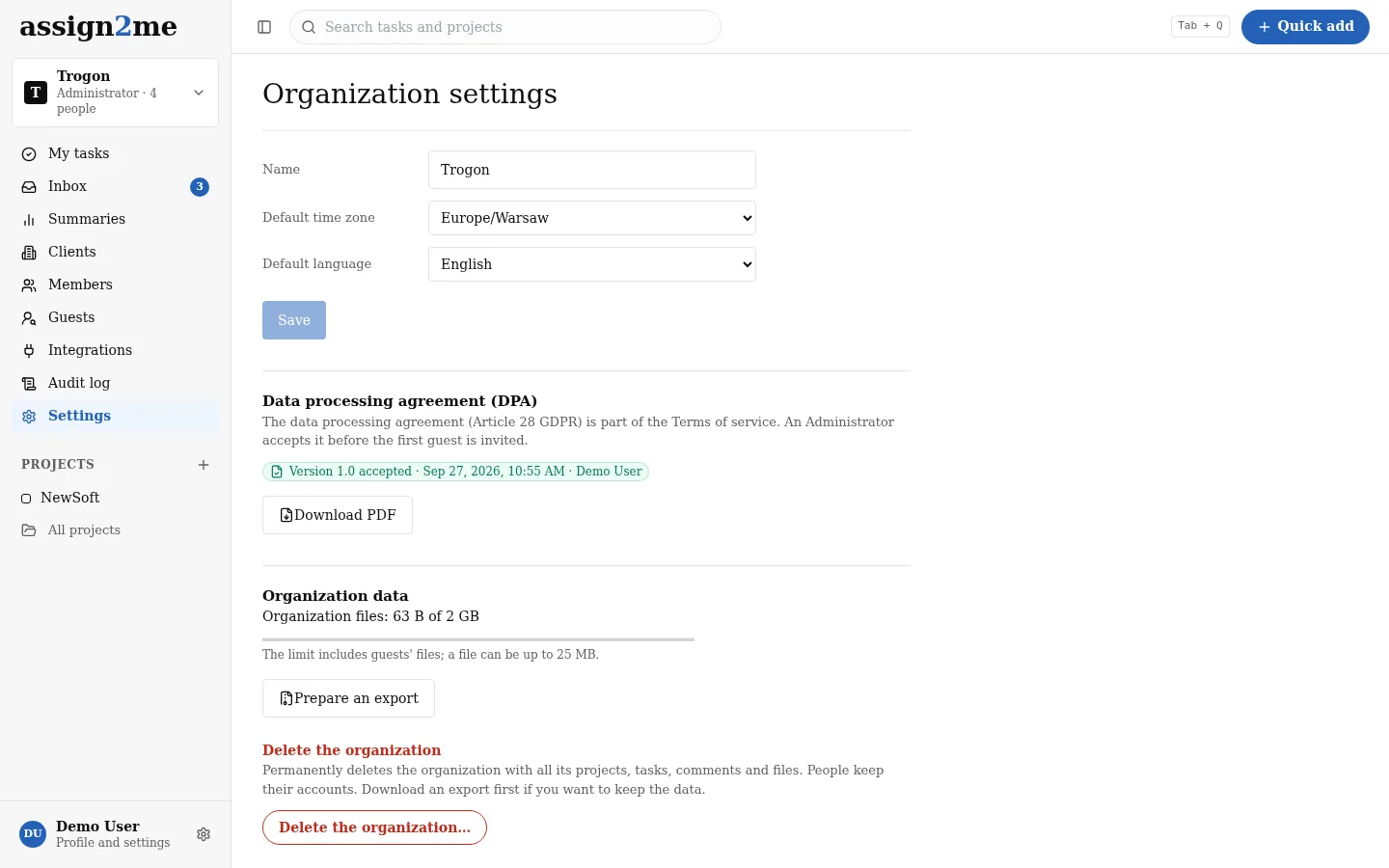
VAT invoice and KSeF
For every period, electronically. Polish companies get it through KSeF.
Annual plan
10 months' price for 12. No packs, no tiers.
Reverse charge in the EU
EU VAT number checked in VIES, invoice without VAT.
DPA in the app
The version, the date and who accepted it.
Full organization export
Projects and tasks as CSV and JSON, with attachments, in one ZIP file.
Permanent deletion
An administrator deletes the organization in its settings.
Everything for one price
30 days free. Then €19 per month excl. VAT for a team of up to 5, each additional person +€3.50. Client guests: unlimited and free.